


The Display tab is an advanced graphical editor built into the DOMIQ configurator, allowing you to create interactive home control panels. It is the flagship feature of the system, enabling installation control via the DOMIQ/Remote application, DOMIQ/Display panels, and any web browser.
1. Interface Structure of the Tab #
The editor is divided into several key areas to streamline the design process:
- Button Bar (Below the “Display” tab): Contains tools for managing the entire visualization, such as adding new screens and layers, copying/pasting elements, and importing/exporting files. You will also find the
.xmlbutton here, which uploads the completed configuration to the Base module’s memory.
- Structure (Left side): Displays the hierarchical tree of your project. Screens are located at the root level, and they can contain Layers as well as individual controls.

- Attributes Table (Bottom left): Clicking on any element in the structure tree or directly in the editor displays its detailed parameters here (e.g., X/Y coordinates, assigned communication channel, background image).

- Visualization Editor (Right side): An interactive preview where you arrange controls on a selected background using a drag-and-drop method.


2. Key Concepts: Screens and Layers #
- Screen: The primary view, corresponding to a single “dashboard” in the application. Each screen must have a unique identifier. The screen named main is displayed first upon launching the control application. For each screen, you can set a custom background image (e.g., a floor plan with a recommended resolution of 800×600 px) or a URL address pointing to graphics hosted on external servers. This is particularly useful when using higher-resolution graphics and larger file sizes.
- Layer: Used for grouping controls (e.g., “Lighting”, “Heating”). Layers are extremely useful as their visibility can be managed collectively. For instance, clicking a single button on the visualization can show or hide an entire group of icons, improving interface clarity.
View of the House Screen with the Lights and Temperature Layers:

3. Types of Available Controls #
You build the visualization using ready-made elements by dragging them from the list in the Visualization Editor onto the project area:
- Light: The most versatile control. It can be used to turn lamps on/off, control roller shutters (up/down/stop modes), or display the status of motion detectors.
- Switch: A bistable button used to control any identifier on an on/off basis. Unlike a standard Button, the Switch displays its current status directly on the visualization.
- Toggle (Control Method): In the visualization editor, “toggle” does not appear as a standalone control in the “New” list, but it is a key control method for the Light element. Selecting this option ensures that each press of the icon on the screen alternately sends
onandoffcommands to the assigned channel. - Dimmer: A dedicated control for dimmable outputs. A short press acts as a switch (on/off), while a long press (over one second) initiates a smooth brightness adjustment. The current brightness percentage is displayed directly on the control.
- Value / Temperature: Display numerical data, such as current temperature, humidity, or energy consumption.
- Text: Allows placement of any text content on the visualization. It can display a static label defined in the configuration or dynamically fetch content from a selected identifier (e.g., showing the currently playing track title or the status of a logic variable).
- RGBW: An advanced control for color lighting. By default, it displays the current light color, and clicking it opens a full-screen view featuring a color picker ring alongside brightness and saturation sliders. It supports four channels: red, green, blue, and optionally white.
- Camera: Integrates a live MJPEG stream preview window directly into the visualization.
- Image: Used to add static graphics, such as logos.
A detailed description of the interface can be found HERE
4. Creation Process (Step-by-Step) #
- Resource Preparation: First, upload background graphics and custom icons in the Resources tab. To upload files here, use one of the following methods:
- Clicking the Preview Window: After selecting the appropriate folder in the file structure (left side), click directly inside the Preview Window (the large area on the right). This opens your computer’s native file selection window.
- Drag & Drop: Alternatively, simply drag files from a folder on your computer and drop them directly onto the Preview Window in your browser.
- Adding a Screen: In the Display tab, click + Screen, name it, and select a background image from the list.
- Arranging elements: Drag the controls found in the Visualization Editor window (e.g. Light) onto the background image.
- Parameter Configuration: In the Attributes Table, enter the appropriate Channel (e.g.,
LCN.relay.0.10.1), select a graphical Theme, and specify the Control Method (e.g., switch or dimmer). - Saving: Once your work is complete, click Save.
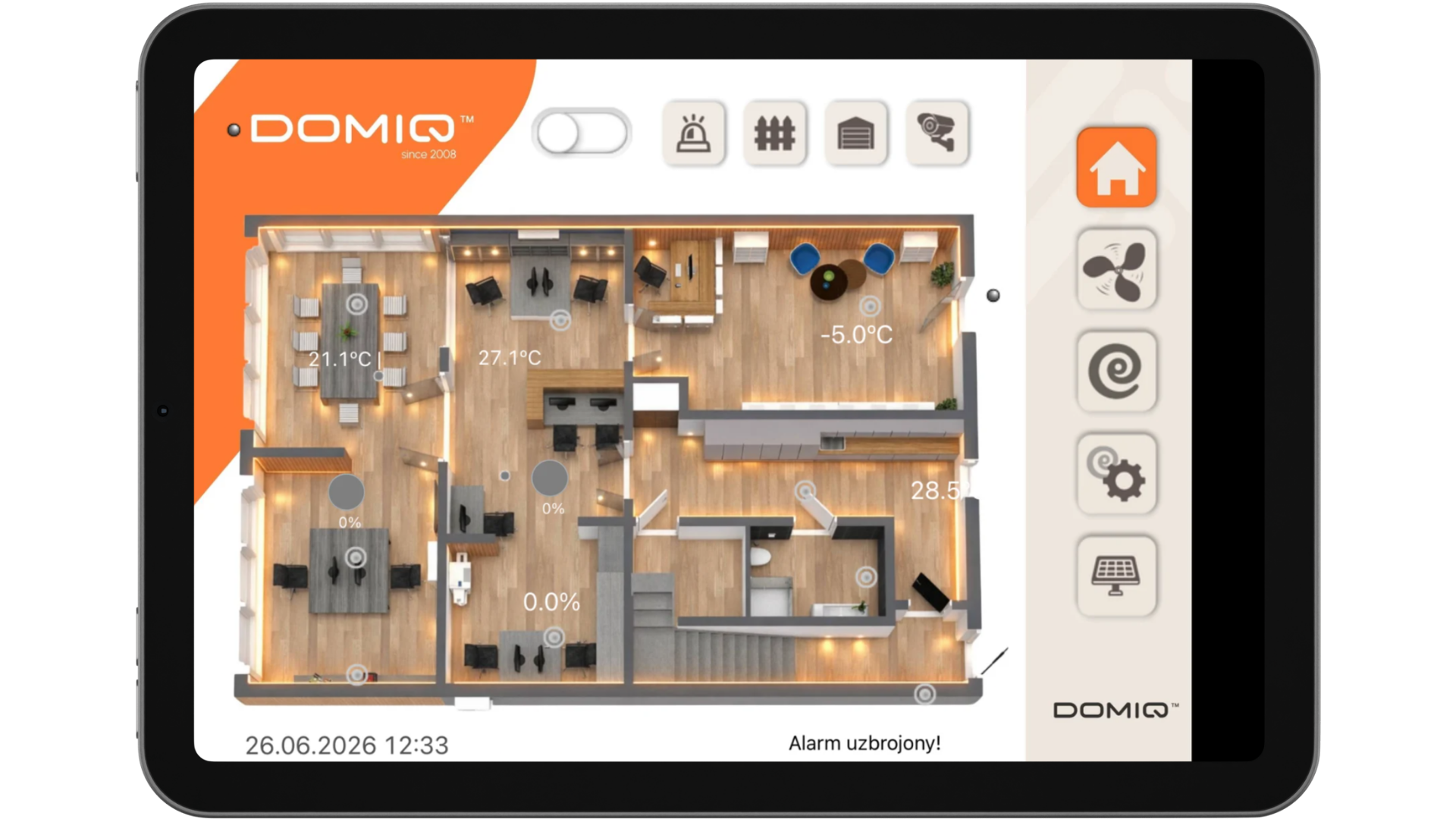
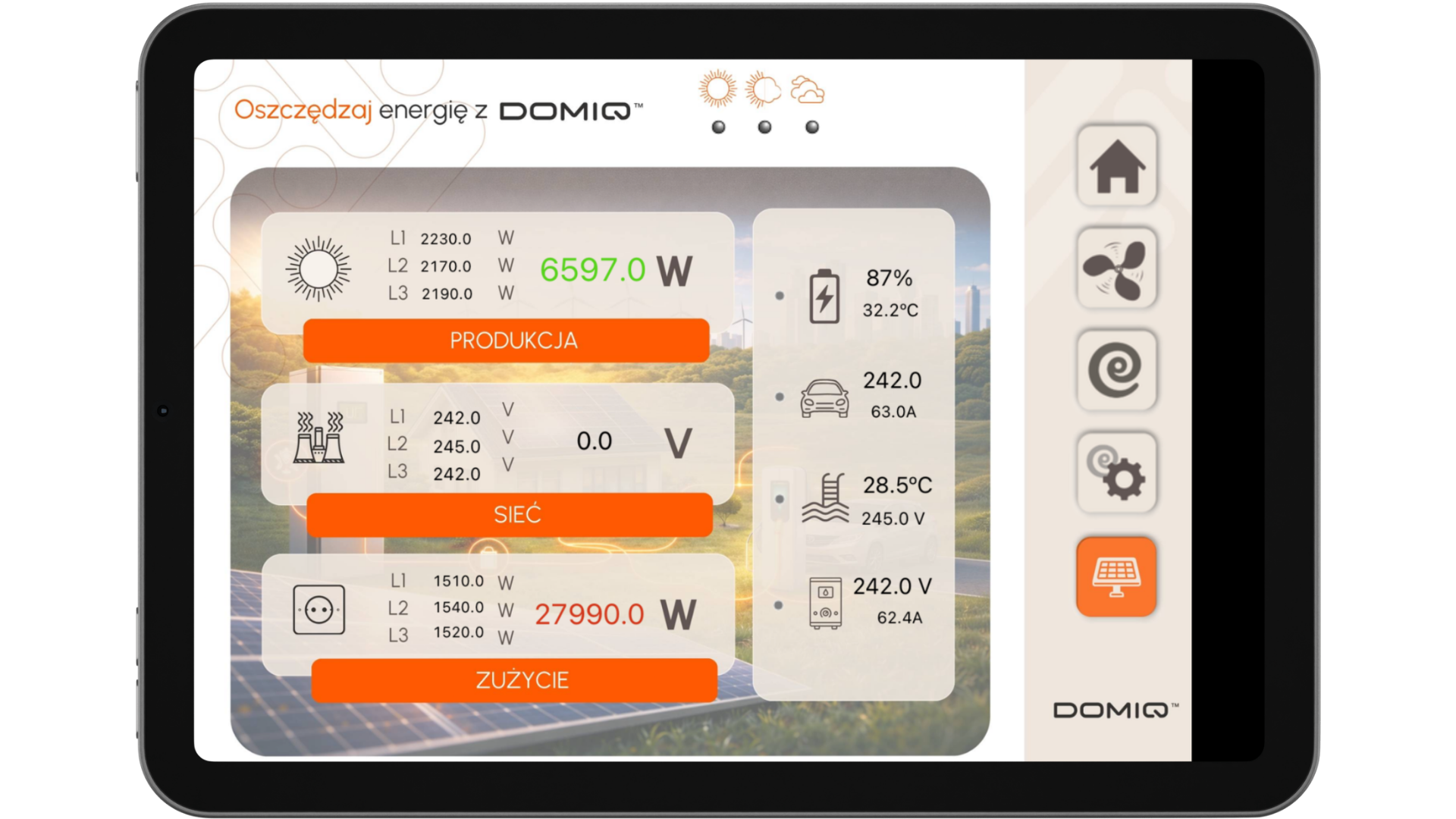
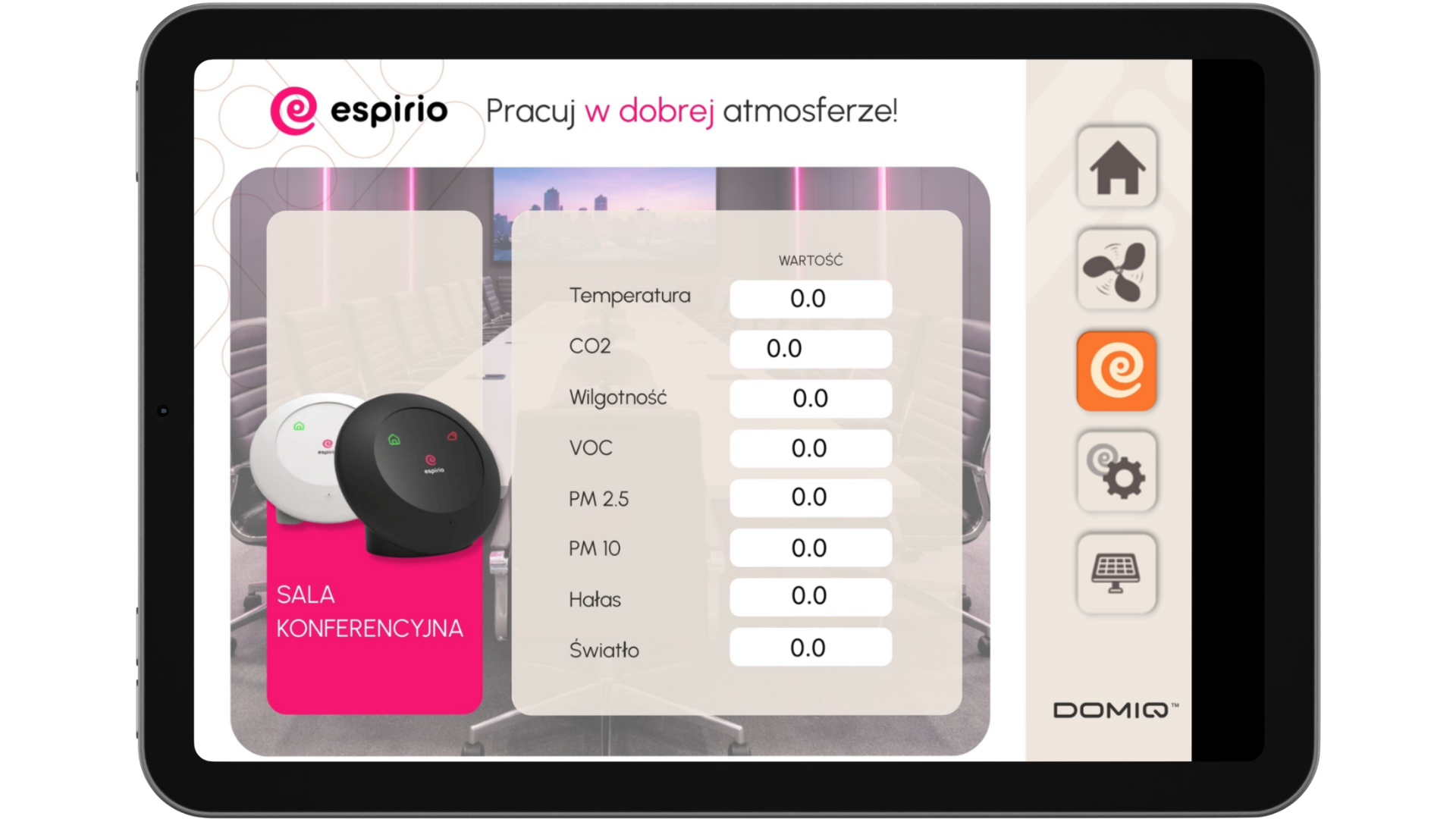
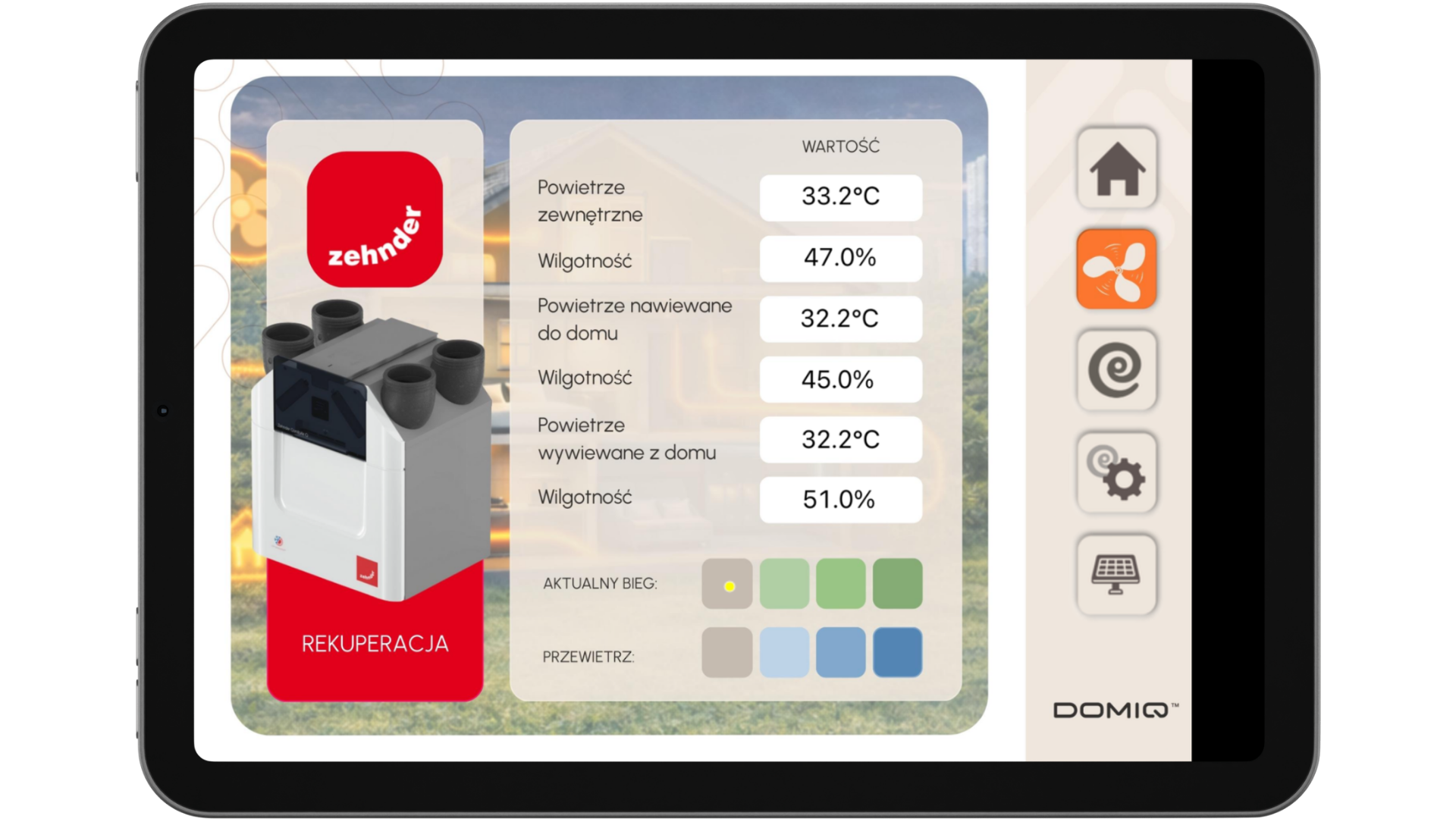
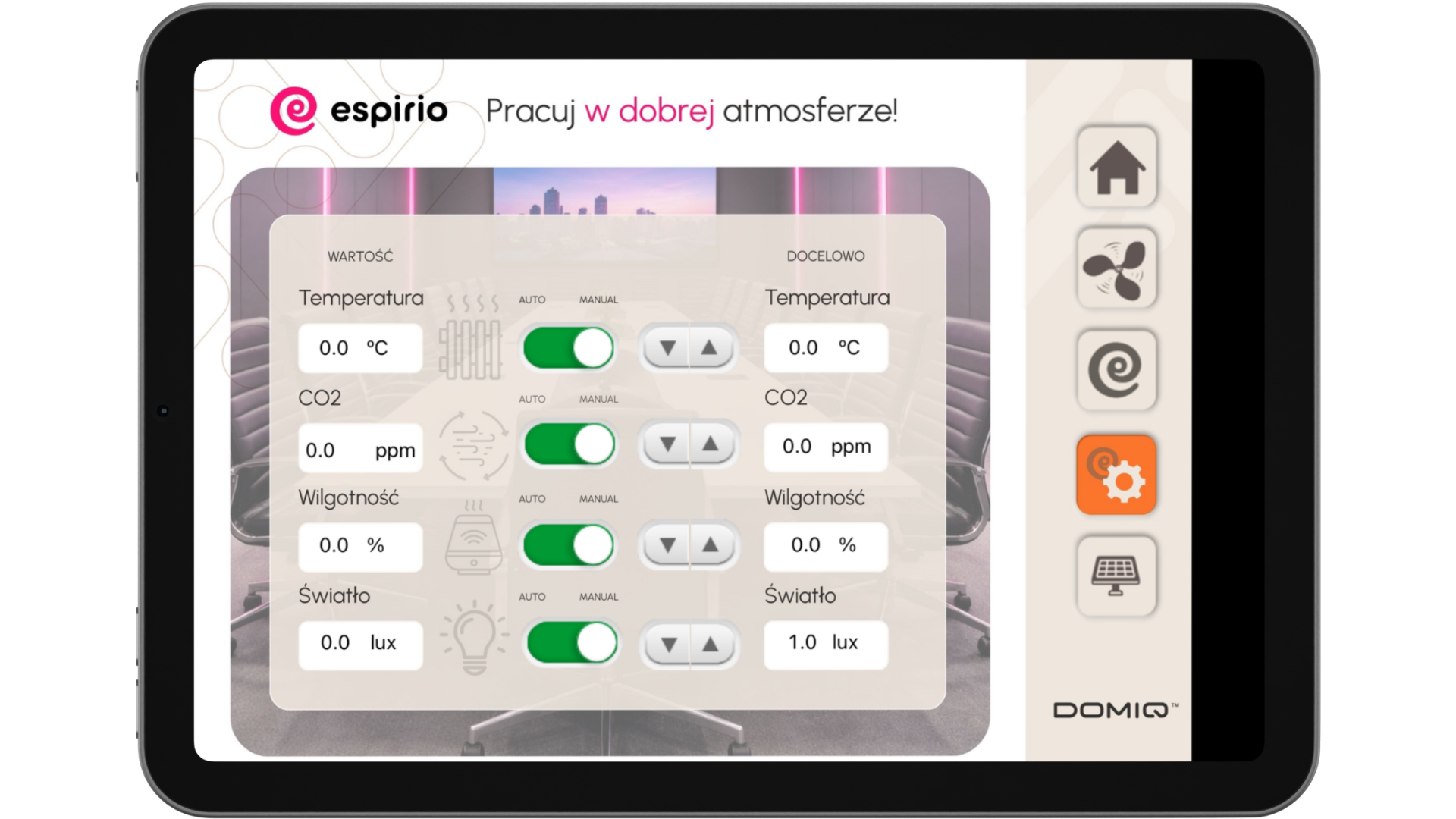
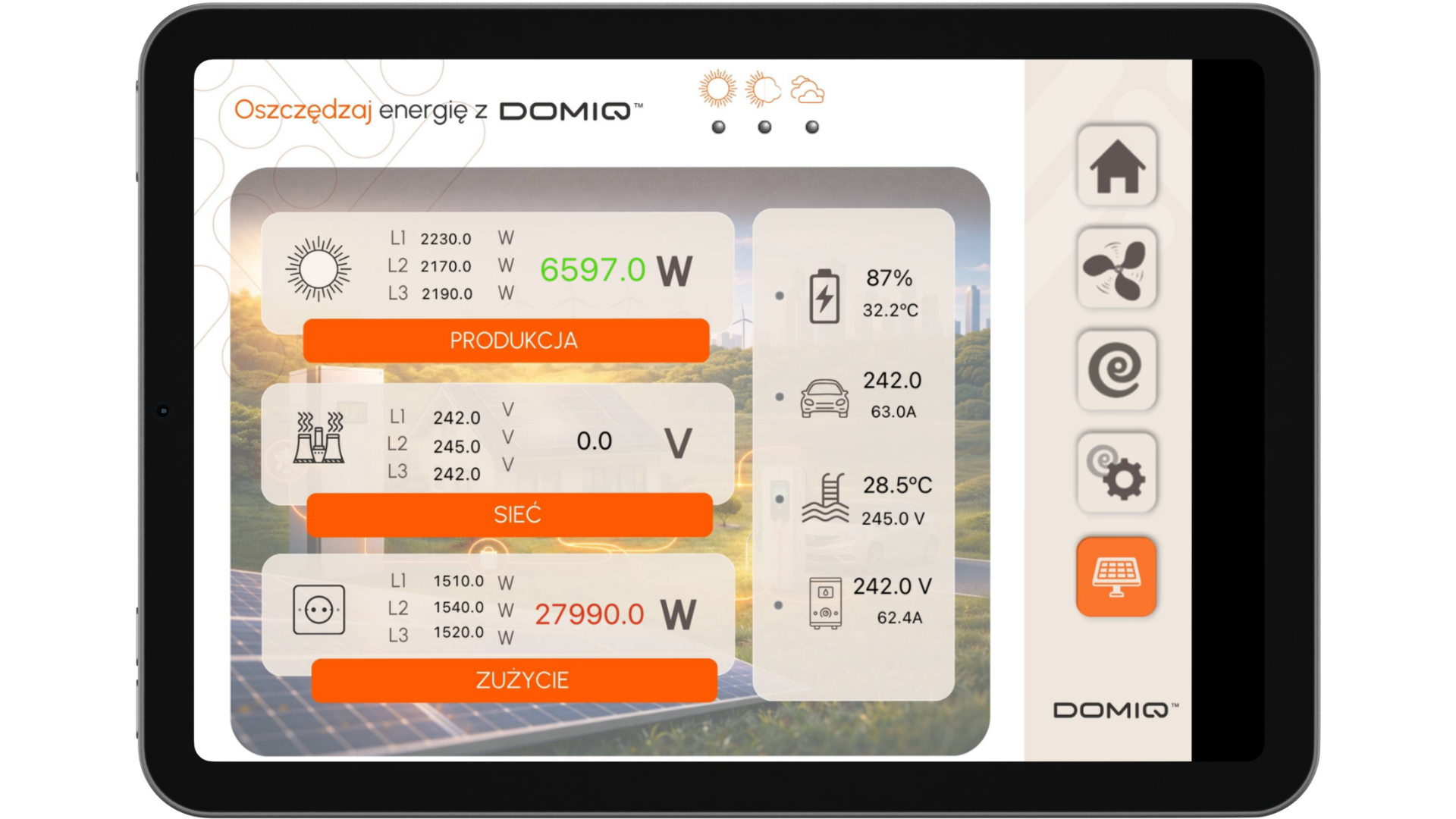
Final effect on iPad (iOS):
For users of the new Base 2.0 module, this tab operates significantly faster due to the device’s increased processing power, and the larger FLASH memory allows for storing much more graphically rich projects without performance concerns.