


1. Introduction #
Modern smart home technologies allow you to automate many everyday activities, with blind control being one of the most commonly chosen solutions. Blinds raised at a set time help with waking up in the morning by letting natural light into the room. Automatic blinds can adjust their behavior based on time, weather conditions, or the household’s schedule, ensuring appropriate lighting conditions, and can also indirectly contribute to better energy management in the building (e.g. protection against excessive room heating in summer). In this tutorial, you’ll learn how to build a blind control system using the DOMIQ/Expander module and the Satel INT-IORS.
2. What will you need? #
To implement the presented functionality, you will need the following devices:
- DOMIQ/Base – the base module of the DOMIQ system.
- DOMIQ/Expander – an expansion module that lets you connect up to 32 Satel INT-IORS devices.
- Satel INT-IORS – a device equipped with 8 relay outputs, allowing control of up to 4 blinds.
- Blinds you want to control.
- Mobile device with the DOMIQ/Remote app.
- (Optional) A wall button to control the blinds. Later in the tutorial, we will present both single- and dual-button control.
3. Initial configuration #
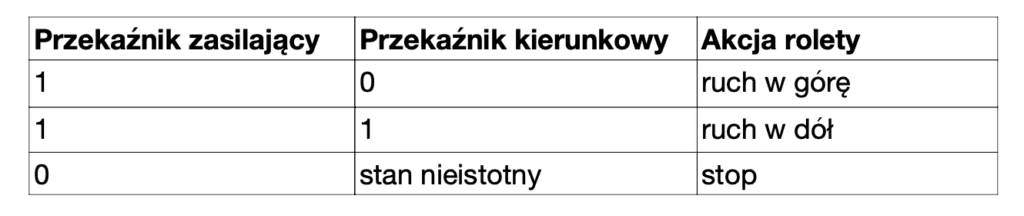
1. Correctly connect the blind motor to the relay outputs on the INT-IORS module. Blind control is carried out using a pair of relays, where the first relay of the pair powers the motor, and the second selects the direction of the blind’s movement. The table below shows the relay states along with the actions performed by the blind:
2. Set the address of the Satel INT-IORS module using dip-switches. In our examples, we used address 1.
Connect the Satel INT-IORS module to the DOMIQ/Expander module according to its configuration manual (you’ll find it on our website in the section: Modules > Expander).
4. Controlling blinds in DOMIQ #
In the DOMIQ system, there are three blind control modes available, making it easier to adjust the method to the conditions of a specific installation and the client’s needs.
The identifier EXP.shutter.E.R, is used for all types of control, where E is the address of the INT-IORS expander (0–31), andR is the blind number. Allowed values: 1–4 or all — controlling all four blinds simultaneously.
4.1. Single-button control #
As the name suggests, you can achieve this type of control using a single wall switch or a Button control in the Remote app. In this case, controlling the blind involves cycling its state through a closed loop: up – stop – down – stop, and so on.
Control from the Remote app #
This refers to the Remote tab in the Base module configurator. We assume control of the first blind in the module with address 1.
- Add a Button widget and double-click it to begin editing.
- Click +Command
1. Name: C.EXP.shutter.1.1
2.Value: toggle - Save the Remote tab.
- Done!
Control from a wall button #
In this case, a single doorbell-type push button is required, connected to an input on the INT-IORS module. Each press will be captured by the Base module as an event, to which a command switching the blind’s state will be assigned. For the purposes of this example, we assume the button is connected to the first input on the module with address 1.
- In the Events tab, add a new event and configure it as follows:
- Channel: E.EXP.input.1.1
- Data: 1
- Actions > +Command
- Name: C.EXP.shutter.1.1
- Value: toggle
- Done!
Both descriptions above can also be applied to simultaneously controlling four blinds connected to the INT-IORS. Simply enter the following in the Name field: C.EXP.shutter.1.all.
4.2. Dual-button control #
This type of control requires the use of two buttons. The first button switches the blind between two states: moving up – stop, and the second between moving down – stop. Each press of the button switches the blind between one of these two states.
Control from wall buttons #
The scheme is almost identical to that of single-button control. However, two events will need to be defined — one for each button separately.
For the up-stop button, use toggleup in the Value field.
For the down–stop button, use toggledown in the Value field.
In this case, we don’t present control via the Remote app, since the next control method described is dedicated to that purpose.
4.3. Control using the Blind widget #
This is the dedicated control method using the Remote app. The configuration is very simple (done in the Remote tab):
- Add the Blind widget from the Channel widgets group.
- Double-click it to edit.
- Label: enter the blind description.
- Channel: EXP.shutter.1.1
- Save the configuration.
- Done!
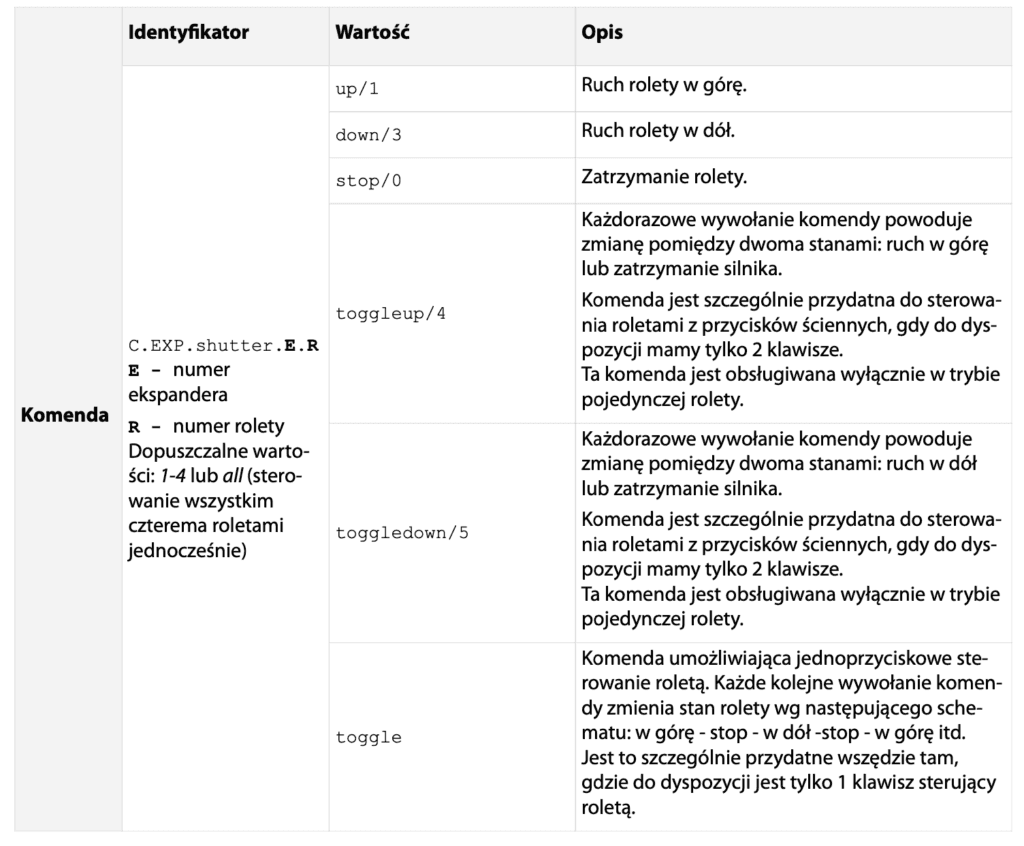
The Blind widget sends commands up, down, or stop depending on its state – a typical set of commands for blind control using the Expander module. This command set can also be used in timers and events, which we will describe later.
The table below contains a summary of blind control commands available in the DOMIQ system:
5. Automation #
Automated blind control is an important aspect of a smart home. It saves you time — eliminating the need to remember to set the blinds to the desired position. Proper blind control also affects your well-being. Numerous studies on brain function have shown that for better sleep, a completely dark room is recommended. Meanwhile, easier morning wake-ups are supported by exposure to sunlight a few moments before the set alarm time.
In the DOMIQ system, you have full control over what time your blinds should open or close. In the rest of this chapter, we show how to link blinds to timers, which you can control freely.
5.1. User Interface #
To allow the user to select the opening and closing time of the blinds, a proper user interface must be created and made available in the Remote app. To make the settings persistent, we’ll use MEM variables, which are saved in the non-volatile memory of the Base module – meaning they are retained even after power loss. The description refers to the Remote tab in the configurator.
The first step is to create a suitable structure for the widgets controlling the blinds. For this tutorial, we assumed that all these widgets will be grouped within a separate page in the app structure. Alternatively, you can add the widgets to the pages dedicated to individual rooms.
Add a new Page and give it a name, e.g. Blinds. You can also choose an icon for easier navigation. Before the next step, you need to choose one of two approaches to building the structure:
- You can create sections for individual rooms – this is ideal when a room contains more than one blind. Remember to name each section appropriately.
- you can add all the controls to a single section and make sure to give appropriate names to the individual controls.
We’ve adopted the approach of creating separate sections for individual rooms. In each section, we’ll then add the controls for operating the blind, as well as controls for managing the blind’s opening and closing time.
So now add a Section control and fill in its name. Add a Blind control from the Channel Controls group to the Section. If you’ve already completed this step by following the instructions in subsection 4.3 Control Using the Blind Control, then move this control within the structure. Otherwise, follow the procedure below.
- Double-click the widget to edit.
- Label: enter the blind description.
- Channel: EXP.shutter.1.1
We are using blind no. 1 in the module with address 1.
Next, we’ll add controls for managing the blind’s opening and closing time. Both controls will use MEM variables. For convenience and to make the variable names easier to remember, we’ve adopted the following naming system, which relates to the blind control identifiers (it’s not mandatory, but in our opinion it helps keep the naming organized):
MEM.shutter.E.R.(up-down).(h-m), where E is the expander number, R is the blind number up / down is the direction h / m is used for hours and minutes.
Examples:
MEM.shutter.1.1.up.h – MEM variable storing the hour of opening blind 1.1MEM.shutter.1.1.up.m – MEM variable storing the minute of opening blind 1.1
Both variables together define the full time for opening a specific blind.
So now:
- Add a Time widget and open it for editing
- Label: Opening
- Hour channel:
MEM.shutter.1.1.up.h - Minute channel:
MEM.shutter.1.1.up.m
Similarly, add a Time widget for closing, changing the MEM variable names to: MEM.shutter.1.1.down.h and MEM.shutter.1.1.down.m.
Effect in the Remote app:

5.2. Timers #
The last element is connecting the user interface with the timers, which will automate the whole thing. As you might guess, we’ll need two timers. One for opening the blind, and another for closing it. In the timer configuration, we’ll use the MEM variable names created in the previous step as the input data determining when the timers are triggered.
In the Timers tab, add a timer and configure it as follows:
- Description: Enter the description, e.g. bedroom blind open
- Hour: MEM.shutter.1.1.up.h
- Minute: MEM.shutter.1.1.up.m
- Actions > +Command
– Name: C.EXP.shutter.1.1–Value: up
Now add the second timer and configure it similarly:
- Description: bedroom blind close
- Hour: MEM.shutter.1.1.down.h
- Minuta:MEM.shutter.1.1.down.m
- Actions > +Command
Name: C.EXP.shutter.1.1
Value: down
- Actions > +Command
Finally, save the Timers tab.
6. Summary #
Congratulations! You now know how to configure a blind control system using the DOMIQ system and Satel INT-IORS modules. You should also be familiar with all the blind control modes available in the DOMIQ system and know how to use timers to automate them.